
Disclosure: Gamingshopee is reader-supported. If you buy through links on this page, we may earn a commission at no extra cost to you.
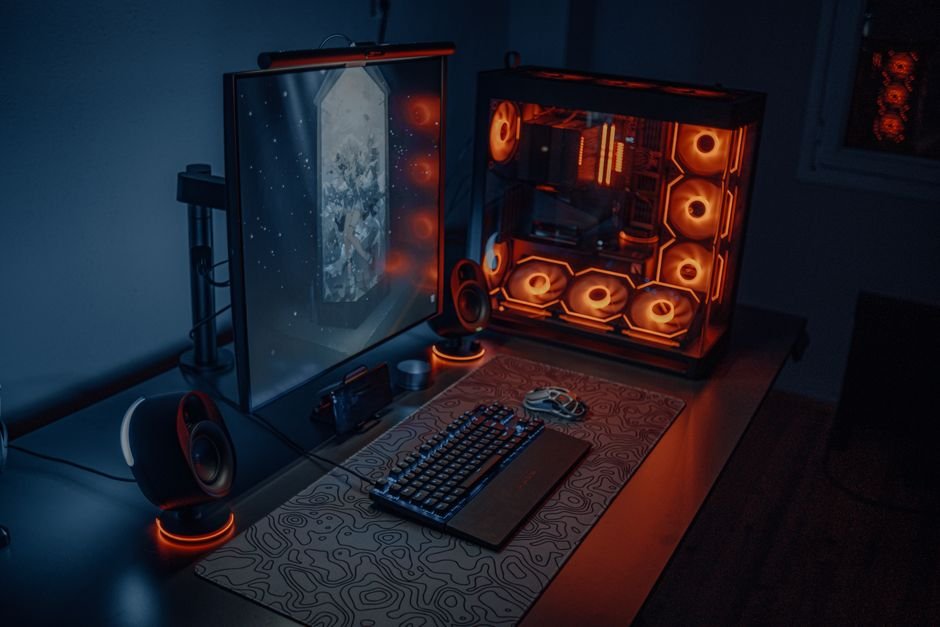
You don’t need two PCs to stream well. That myth alone stops more people from starting than any piece of hardware ever will.
Modern GPUs handle the encoding work that used to require a second machine. So the real question isn’t “single PC or dual PC.” It’s which pieces actually matter for your setup, and which ones are just nice to have.
This guide walks through every piece: the PC itself, the mic, the webcam, the capture card if you need one, and the internet connection that ties it all together. Build from here, one piece at a time.
Streaming + Gaming Setup — Quick Comparison
| Component | Entry Pick | Solid Mid-Tier | Why It Matters |
|---|---|---|---|
| CPU | Ryzen 5 7600 | Ryzen 5 9600X | Handles game logic while GPU handles encoding |
| GPU | RTX 4060 | RTX 5060 / 5070 | NVENC/AV1 hardware encoder does the streaming work |
| RAM | 16GB DDR5 | 32GB DDR5 | OBS + game + Discord + browser tabs add up fast |
| Microphone | Fifine K669B (~$40) | Elgato Wave:3 (~$150) | Audio quality matters more than video to most viewers |
| Webcam | Logitech C920 (~$70) | Logitech Brio (~$130) | 4K gives room to crop/zoom without quality loss |
| Upload speed | 10 Mbps | 25+ Mbps | Stream bitrate should stay under 75% of your upload |
How We Put This Together
- We assumed single-PC streaming by default: it’s the right call for the overwhelming majority of streamers now that hardware encoding has matured.
- We separated “essential” from “nice to have”: a capture card is essential if you’re on console, irrelevant if you’re on PC. We flagged which is which.
- We priced real current hardware, not launch-day MSRP: streaming gear pricing shifts fast, so every number here reflects what you’d actually pay right now.
- We treated internet speed as a hardware requirement, not an afterthought: the best PC in the world doesn’t fix a bad upload connection.
Single PC vs Dual PC: Settle This First
For 99% of streamers starting out, one well-built PC is the right call. Modern GPUs come with dedicated hardware encoders, NVENC on Nvidia, VCN on AMD, that handle the video compression work entirely separately from your game rendering. That means your CPU stays free to run the game itself, and your frame rate barely moves when you go live.
Dual PC setups still exist, and they still make sense in specific cases. If you’re a competitive esports player who needs every possible frame with zero compromise, or a creator pushing AAA titles at 1440p with settings maxed while running a heavy scene in OBS, a second PC dedicated purely to encoding takes that load off completely. But that’s a narrow use case. For most variety streamers, IRL streamers, and casual-to-mid-size creators, it’s an unnecessary expense that adds complexity without a real performance payoff.
If you’re unsure which camp you’re in, default to single PC. You can always add a second machine later if you genuinely hit a wall, and most people never do.
The PC: What Actually Matters
Start with the GPU, not the CPU. Your GPU’s encoder is doing the heavy lifting for the stream itself, so this is where your money should go first. An RTX 4060 or newer handles 1080p60 streaming comfortably with almost no visible performance hit on the game side. Step up to an RTX 5060 or 5070 class card if you want to stream at 1440p or push toward 4K down the line.
For the CPU, you don’t need a flagship chip. A Ryzen 5 7600 or 9600X class processor is plenty, since it’s not doing the encoding work. What it is doing is running your game, OBS’s scene compositing, Discord, your browser with chat and alerts open, and often a music player in the background all at once. That’s why 8 cores is the sweet spot rather than a bare minimum 6.
RAM is where people cut corners and regret it. 16GB technically works, but it’s tight the moment OBS, your game, a dozen Chrome tabs, and Discord are all running simultaneously. 32GB of DDR5 is the real sweet spot for streaming on a single PC in 2026, and it’s cheap enough now that there’s little reason to go lower if you’re building fresh.
Encoding: NVENC, AV1, and Why It Matters
Always use hardware encoding over software (x264) unless you have a specific reason not to. NVENC and equivalent AMD/Intel hardware encoders are purpose-built silicon designed exactly for this job, and using them means your CPU never has to split its attention between running your game and compressing video.
The AV1 codec is the bigger shift in 2026. It’s roughly 50% more efficient than the older H.264 standard still used by most platforms by default, which means you can push a noticeably sharper image at the same bitrate, or the same quality at a meaningfully lower bitrate. On GPUs and platforms that support it, AV1 stretches your available upload bandwidth by around 40 percent. If you’re buying new hardware now, make sure AV1 encoding support is on the spec sheet, it’s quickly becoming the standard worth having.
Microphone: The Upgrade Viewers Notice First
Audio quality matters more than video quality to most viewers, even though it gets far less attention when people build their setups. Viewers will sit through mediocre webcam quality without complaint. Bad, tinny, or inconsistent audio drives people off a stream almost immediately.
A budget USB condenser mic in the $40 to $50 range is a genuine upgrade over a headset mic and enough to sound professional for casual streaming. If you’re serious about growing, the Elgato Wave:3 at around $150 is one of the most recommended mics for exactly this reason: broadcast-quality sound with simple USB setup, plus built-in clipguard technology that prevents your audio from distorting during loud, excited moments, which happens to streamers a lot more than you’d think.
Webcam: Resolution Headroom Matters More Than You’d Think
A Logitech C920 class 1080p webcam at around $70 is a perfectly solid starting point and a real step up from most built-in laptop cameras. It won’t hold you back for a long time.
If you want to go further, a 4K webcam like the Logitech Brio isn’t about actually streaming at 4K, almost nobody does that on Twitch. It’s about having resolution headroom, so you can crop in tighter on your face cam or reposition your framing without any visible loss in sharpness. Look for HDR support too, it gives you noticeably more usable dynamic range in rooms with mixed or inconsistent lighting, which describes most home setups.
Capture Card: Only If You’re On Console
If you’re streaming from a PC, skip this section entirely, you don’t need one. If you’re streaming PS5 or Xbox gameplay through a PC, a capture card is not optional, it’s how the console’s video signal reaches your streaming software at all.
The Elgato HD60 X at around $170 is the standard pick for a reason: plug-and-play setup, 4K passthrough so your own TV or monitor still gets the full-quality signal, and 1080p capture for the actual stream output. It works with any modern console without fuss, which is exactly what you want from a piece of hardware that sits in the middle of your entire signal chain.
Stream Deck: Small Purchase, Big Quality-of-Life Upgrade
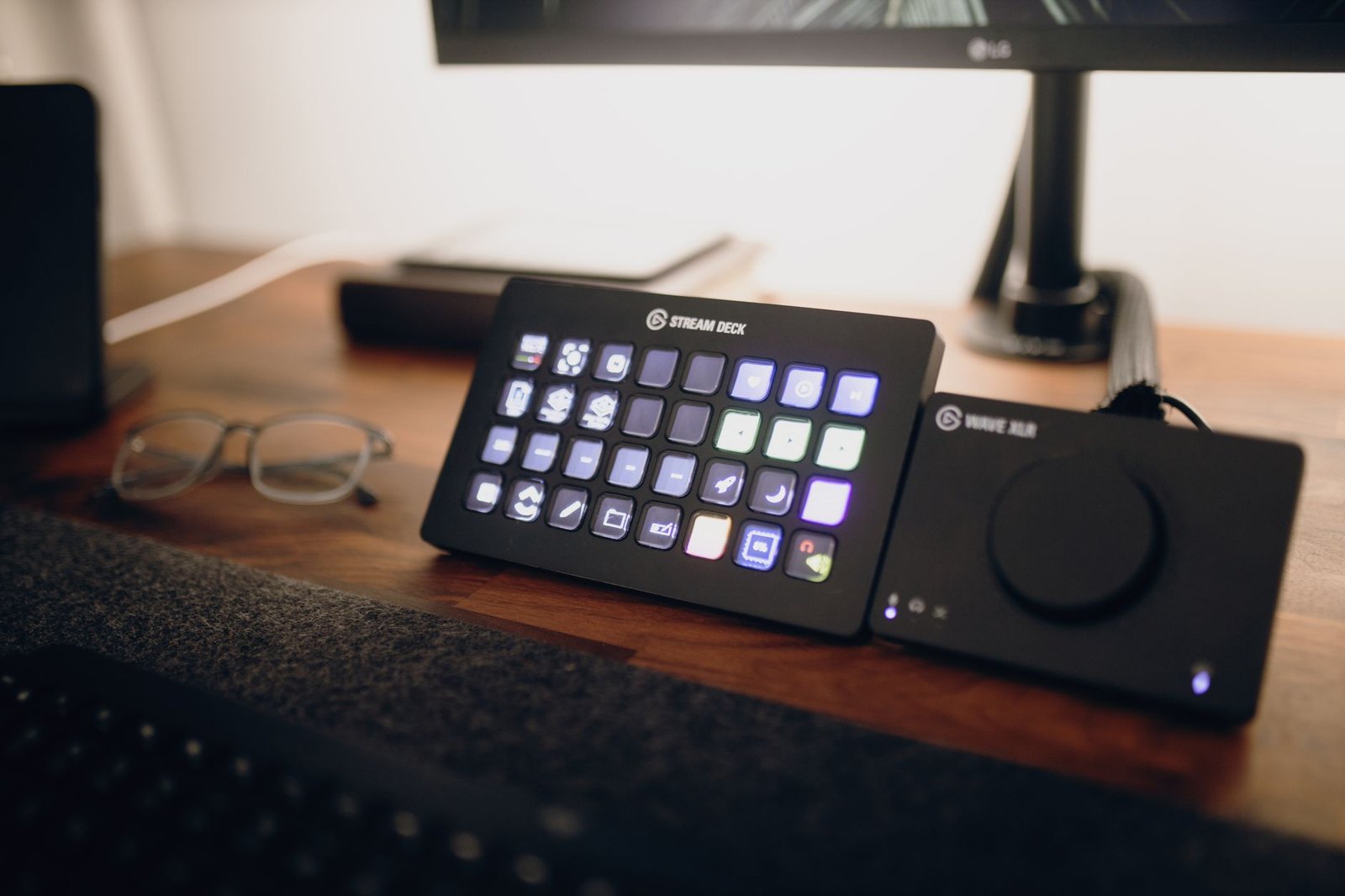
A Stream Deck is a small panel of programmable buttons that lets you switch scenes, trigger sound effects, mute your mic, or run macros without alt-tabbing out of your game. It’s not essential in the way a mic or GPU is, but once you’ve used one, going back feels clumsy.
The 6-button Mini runs around $80 and covers the basics, scene switching, mute, a couple of sound effects. The 15-button standard model at around $150 gives you enough room for a full alert and scene-switching setup without needing folders or page-flipping mid-stream. Start with the Mini if you’re unsure how much you’ll actually use it.
Lighting and Dual Monitors: The Setup Pieces People Skip
A single, affordable key light aimed at your face solves more webcam quality problems than any camera upgrade will. Even a $30 ring light or softbox panel dramatically improves how you look on camera compared to relying on overhead room lighting, which tends to cast unflattering shadows and shift color depending on the time of day.
A second monitor isn’t strictly required, but it makes managing chat, alerts, and OBS scenes far easier without constantly alt-tabbing out of your game, which can interrupt both your gameplay and your stream’s flow. If you’re running a Stream Deck alongside dual monitors, most Stream Deck software includes utilities for controlling which display shows what, worth setting up once so you’re not fighting your own tools mid-stream.
Internet: The Requirement Everyone Underestimates
Your PC and camera can be perfect and your stream will still look bad if your upload speed can’t support it. A good rule of thumb: your stream’s bitrate should never exceed about 75 percent of your actual upload speed, that leaves headroom for network fluctuations and anything else running on your connection.
For 720p at 30fps, a stable 5 to 6 Mbps upload is enough. For 1080p at 60fps, plan for at least 10 Mbps upload, and Twitch specifically caps non-partner bitrates around 6,000 Kbps, so extra bandwidth beyond that mostly buys you stability rather than quality on that platform. YouTube handles things differently, it transcodes for viewers automatically and supports much higher source bitrates, so 15 Mbps upload comfortably covers 1080p60, while 4K streaming realistically wants 50 Mbps or more.
If you’re not sure what your actual upload speed is, run a speed test before you buy anything else on this list. It’s the one piece of the puzzle that no amount of hardware spending can fix.
Software: OBS Studio Is Still the Right Default
OBS Studio remains the default choice for most streamers, and for good reason. It’s free, open source, actively maintained, and supports every major platform without restriction. Streamlabs, built on top of OBS, adds a friendlier interface and bundled alert widgets, which can save setup time if you’re brand new and don’t want to configure scenes from scratch.
The trade-off is that Streamlabs runs slightly heavier on system resources than plain OBS, since it’s layering extra features on top. If your PC is on the lower end of the specs above, stick with OBS and add alert tools separately. If you’ve got RAM and CPU headroom to spare, Streamlabs’ convenience is a reasonable trade. Either way, take the time to set your encoder to NVENC or your GPU’s equivalent hardware encoder inside the settings menu, it’s not always the default, and leaving it on software (x264) encoding is one of the most common setup mistakes that quietly tanks both stream quality and game performance at once.
Common Mistakes New Streamers Make
- Leaving the encoder on software instead of NVENC: this is the single most common cause of dropped frames and stuttery gameplay while live, and it’s a one-click fix in OBS settings.
- Setting bitrate too high for their upload speed: a bitrate above 75 percent of your actual upload causes buffering and dropped frames for viewers, even if your stream looks fine on your own end.
- Buying a webcam before fixing lighting: a $30 light on a $70 webcam looks better than a $200 webcam with bad overhead lighting, every time.
- Skipping a test stream: platforms like Twitch and YouTube both support private or unlisted test streams. Use one before your first real broadcast to catch audio sync issues, bitrate problems, and scene layout mistakes with nobody watching.
- Overspending on a capture card they don’t need: if you’re already gaming on the PC you’re streaming from, a capture card does nothing for you. That budget is better spent on a mic or lighting.
Three Budget Tiers to Build Toward
Entry tier (under $250 in new purchases): Assumes you already own a capable gaming PC. Add a $40 USB microphone, a $70 1080p webcam, and a $30 key light. This alone puts you ahead of a large share of new streamers who skip audio and lighting entirely in favor of camera upgrades that matter less.
Mid tier ($400–$600 in new purchases): Step up to the Elgato Wave:3 microphone, a 4K webcam like the Logitech Brio, a proper softbox or ring light kit, and a 6-button Stream Deck Mini. This tier covers essentially everyone streaming as a serious hobby or early side income, and it’s where most of the visible quality jump from “casual” to “professional-looking” stream happens.
Growth tier ($800+ in new purchases): Add a 15-button Stream Deck, a second monitor if you don’t already have one, and start considering whether your upload speed needs an internet plan upgrade to support 1080p60 or higher reliably. This is also the point where, if you’re pushing AAA titles at high settings while running a heavy OBS scene, it’s worth evaluating whether a dedicated encoding PC actually makes sense for your specific situation, rather than assuming it does by default.
Notice that none of these tiers require replacing your gaming PC itself in most cases. The spending goes toward the pieces that affect how you come across to viewers, not the pieces that affect your in-game performance, which is usually already fine on hardware you already own.
Prices and specs correct as of August 2026.
Frequently Asked Questions
Do I need a second PC to stream and game at the same time?
No, not anymore. Modern GPUs include dedicated hardware encoders that handle streaming separately from game rendering, so a single well-built PC covers the vast majority of streamers without a noticeable performance hit.
What upload speed do I need to stream?
At minimum, 5 to 6 Mbps for 720p30, and at least 10 Mbps for a stable 1080p60 stream. Keep your stream’s bitrate under about 75 percent of your total upload speed to leave room for fluctuations.
Is a capture card necessary for PC streaming?
No. Capture cards are only needed when you’re streaming from a console, like a PS5 or Xbox, through a PC. Streaming directly from a gaming PC doesn’t require one.
Should I upgrade my mic or my webcam first?
Your mic. Audio quality has a bigger effect on whether viewers stay than video quality does. A $40 to $50 USB microphone is one of the highest-impact upgrades available on a tight budget.
What is AV1 and do I need it?
AV1 is a newer, more efficient video codec that delivers noticeably better image quality at the same bitrate compared to the older H.264 standard. It’s not mandatory, but if you’re buying new hardware, GPU support for it is worth having since more platforms are adopting it.
How much RAM do I actually need for streaming?
32GB is the comfortable sweet spot for a single PC running your game, OBS, Discord, and a browser simultaneously. 16GB technically works but leaves little headroom once everything is open at once.
Choosing individual pieces of this setup? See our best esports gaming setup guide, or check best gaming accessories under $50 for budget peripheral picks.
This pairs well with our guide, 1080p vs 1440p vs 4K Gaming.
For a closely related buying question, see Why Your Stream Looks Blurry in Fast Games Even at ‘Good’ Bitrate.
Related Guides
- Best Esports Gaming Setup
- How to Build a Gaming Setup on a $500 Budget
- Best Budget Gaming PC Build Under $800 in 2026 (Tested & Ranked)

3 thoughts on “Best Streaming + Gaming Setup (2026)”