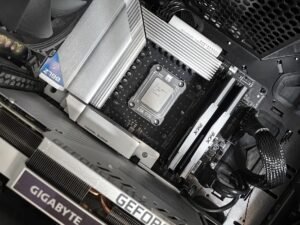

I almost returned a graphics card because I thought it was defective. I’d upgraded from a GTX 1660 to an RTX 4060 in an old build with a 2016-era motherboard, expecting a huge jump. Instead, some games stuttered worse than before — frame times spiking every few seconds like something was choking. I spent a weekend reseating the card, reinstalling drivers, and swapping power cables before I found the actual problem: my motherboard only ran PCIe 3.0, and the RTX 4060 is built around PCIe 4.0 x8 bandwidth. Cut that in half, and once the card ran low on VRAM in a couple of texture-heavy games, it had nowhere to send the overflow data fast enough.
That’s the spec nobody talks about when they tell you to “just buy the best GPU for your budget.” The chip matters, obviously. But the lane configuration behind it, and what motherboard you’re plugging it into, can quietly cap what that chip is able to do — and it won’t show up as a GPU problem. It’ll look exactly like the games are broken.
Why PCIe generation barely matters — until it does
For flagship cards, this whole conversation is close to a non-issue. Independent benchmark testing has repeatedly shown that a high-end GPU running on PCIe 3.0 x16 versus PCIe 4.0 x16 loses somewhere between 1% and 3% of its performance in most games. A PCIe 3.0 x16 slot pushes about 15.8 GB/s, which is still an enormous amount of bandwidth for a full x16 card. If you’re running an RTX 5080 or similar on an older board, you’re leaving almost nothing on the table.
The problem shows up further down the stack, where manufacturers quietly cut the number of PCIe lanes a card actually uses to save cost. That’s the part that doesn’t make it into most buying guides.
The budget and mid-range cards that don’t get the full x16 lanes
Here’s what’s actually wired into current-generation budget and mid-range GPUs:
- The RTX 5050 runs a PCIe 5.0 x8 host interface — not the full x16 you’d assume from looking at the card.
- The RTX 4060 is built around an x8 electrical interface, even though it physically sits in an x16 slot.
- The RX 6500 XT is the most extreme case still floating around the used market — it’s wired for only x4 lanes.
On a modern PCIe 5.0 or 4.0 motherboard, those narrower lane counts still carry plenty of bandwidth, because each PCIe generation roughly doubles the throughput per lane. The trouble starts when you drop one of these cards onto an older PCIe 3.0 board — something very common if you’re upgrading a GPU in an otherwise fine PC instead of building new. An x8 or x4 link that was comfortable on Gen 4 or Gen 5 suddenly gets cut in half again on Gen 3, and now you’re bandwidth-starved in a way the spec sheet never warned you about.
The part that actually causes the stutter: running out of VRAM
Under normal conditions, PCIe bandwidth genuinely doesn’t affect gaming performance much — the GPU does almost all of its work using its own onboard VRAM, without needing to talk to the rest of the system very often. The bottleneck only becomes real once a game’s texture and asset data exceeds what the card’s VRAM can hold. At that point the system has to spill data into system RAM and stream it back and forth over the PCIe bus, and that’s exactly the situation where lane count and generation start to matter.
Testing on this has been pretty consistent: dropping a PCIe 4.0 x4 card down to a PCIe 3.0 x4 connection has produced frame rate losses as steep as 42% in some benchmark passes once VRAM limits were hit, with 1% low framerates — the stutters you actually feel, not just the average number you see in a benchmark chart — dropping by 20 to 35%. Cards like the RX 6500 XT (x4) and RTX 4060 (x8) are the ones most exposed to this, because they were already designed around the assumption of faster Gen 4 bandwidth to begin with.
This is also why the same GPU can feel completely fine in one game and noticeably janky in another. A competitive shooter with modest texture budgets might never come close to overflowing an 8GB card’s VRAM. An open-world game with high-res texture packs will blow past it regularly — and that’s the exact moment your PCIe lane count decides how bad the stutter gets.
How to actually check this before you buy
Before buying a budget or used GPU, it’s worth spending five minutes checking two things instead of just comparing benchmark charts:
1. Look up the card’s real PCIe lane width, not just the generation
Manufacturer spec pages and sites like TechPowerUp list the actual interface — for example “PCIe 4.0 x8” rather than just “PCIe 4.0.” A card advertised as PCIe 5.0 or 4.0 compatible can still be wired for far fewer lanes than the slot it plugs into.
2. Check what generation your motherboard’s PCIe x16 slot actually supports
This is usually buried in the motherboard’s spec sheet or manual, not obvious from looking at the board itself. If you’re on a board from roughly 2017 or earlier, there’s a good chance your primary slot is still PCIe 3.0, even if everything else in your system feels current.
How to check your PCIe generation without opening the case
You don’t need to physically inspect your motherboard to find this out. On Windows, a free tool like GPU-Z shows a “Bus Interface” field on its main tab — it’ll list something like “PCIe 3.0 x16 @ x16 3.0,” which tells you both what your slot supports and what speed the link is actually running at. If that second number is lower than the card’s rated speed, you’ve got your answer immediately. Task Manager’s Performance tab also lists a basic PCIe generation reading under your GPU’s stats, though it’s less detailed than GPU-Z.
The other route is just looking up your exact motherboard model’s spec sheet. Manufacturers list the PCIe generation for each slot, and it’s worth checking the primary x16 slot specifically — some boards support a newer generation on paper but only wire the top slot for full speed, with secondary slots running slower or with fewer lanes shared from the chipset.
Why this hits the used-GPU market especially hard
This bottleneck matters more than usual if you’re buying used, because used-market pricing is driven almost entirely by the chip and VRAM size listed in the ad — nobody advertises “by the way, this card is only wired for x8 lanes.” A seller lists an RTX 4060 for a good price, you compare it against fresh benchmarks that were tested on a current Gen 5 board, and you assume you’re getting the same performance. If your own board is still on PCIe 3.0, you’re not comparing apples to apples, and the gap between “benchmark chart performance” and “performance on my actual PC” can be the entire reason the upgrade feels disappointing.
This is also why I’d treat “is this GPU worth it” questions differently depending on the platform it’s going into. The same RTX 4060 is a clean, low-risk upgrade on a Gen 4 or Gen 5 board. On a Gen 3 board paired with VRAM-hungry games, it’s a card that can genuinely underperform its own reviews — through no fault of the card itself.
Is it worth upgrading your motherboard just to fix this?
Usually, no — and this is where I’d push back on my own instinct from that RTX 4060 weekend. A motherboard, CPU, and RAM swap to jump generations costs more than most people save by buying a slightly cheaper used GPU, and for a lot of games the bottleneck never triggers at all, because you’re not exceeding VRAM capacity in the first place. The fix that actually makes sense for most people is matching expectations to the platform: budget an extra $30-50 toward a GPU with a bit more VRAM headroom (an 8GB card instead of an entry 6GB one, for example), or accept dropping texture quality one notch in the handful of games that would otherwise overflow the buffer. Both are cheaper than a full platform upgrade, and both directly target the actual cause instead of throwing more silicon at a bandwidth problem.
A full upgrade only makes sense if you were already planning to replace the motherboard and CPU for other reasons — more cores, faster RAM support, better connectivity — and the PCIe generation bump is a side benefit, not the main justification.
If you’re pairing a narrow-lane card (x8 or x4) with an older PCIe 3.0 board, and you play VRAM-hungry games at higher texture settings, budget for a little more VRAM headroom than you think you need, or accept that you may need to drop texture quality a notch to stay inside the card’s buffer and avoid ever triggering that PCIe overflow penalty in the first place.
FAQ
Does PCIe generation matter for a high-end GPU like an RTX 5080 or 5090?
Barely. Full x16 flagship cards lose roughly 1-3% performance moving from PCIe 4.0 to PCIe 3.0, because a Gen 3 x16 slot still provides close to 16 GB/s of bandwidth, which is far more than these cards need in typical gaming workloads.
Which budget GPUs are most likely to be affected by this?
Cards wired for fewer than 16 lanes are the ones to watch, including the RTX 5050 and RTX 4060 (x8) and the RX 6500 XT (x4). The narrower the lane count, the more a drop to an older PCIe 3.0 motherboard can cost you once VRAM fills up.
How do I know if I’m actually hitting this bottleneck?
The signature is frame time spikes and dropping 1% lows that get noticeably worse specifically in texture-heavy areas or open-world games, rather than a flat, consistent drop in average FPS across every game. If your average FPS looks fine but the game feels stuttery in bursts, VRAM overflow across a narrow PCIe link is a common, overlooked cause.